We sit down.
You sign.
We review the pages on my Mac and take turns signing. Signatures, initials, dates and corrections work locally, even without Wi-Fi.
A private Mac app, used together with me.
From the first detail to the finished copy. A considered way to prepare, review and sign, together in person or wherever you are.
I built LocalSign for the work around the signature, too. Filling the details. Making a correction. Getting the right initials. Keeping everyone moving. It brings the whole process into one considered workflow.
I fill in the agreed details, assign each person’s fields and review the document before it goes out.
We review the pages on my Mac and take turns signing. Signatures, initials, dates and corrections work locally, even without Wi-Fi.
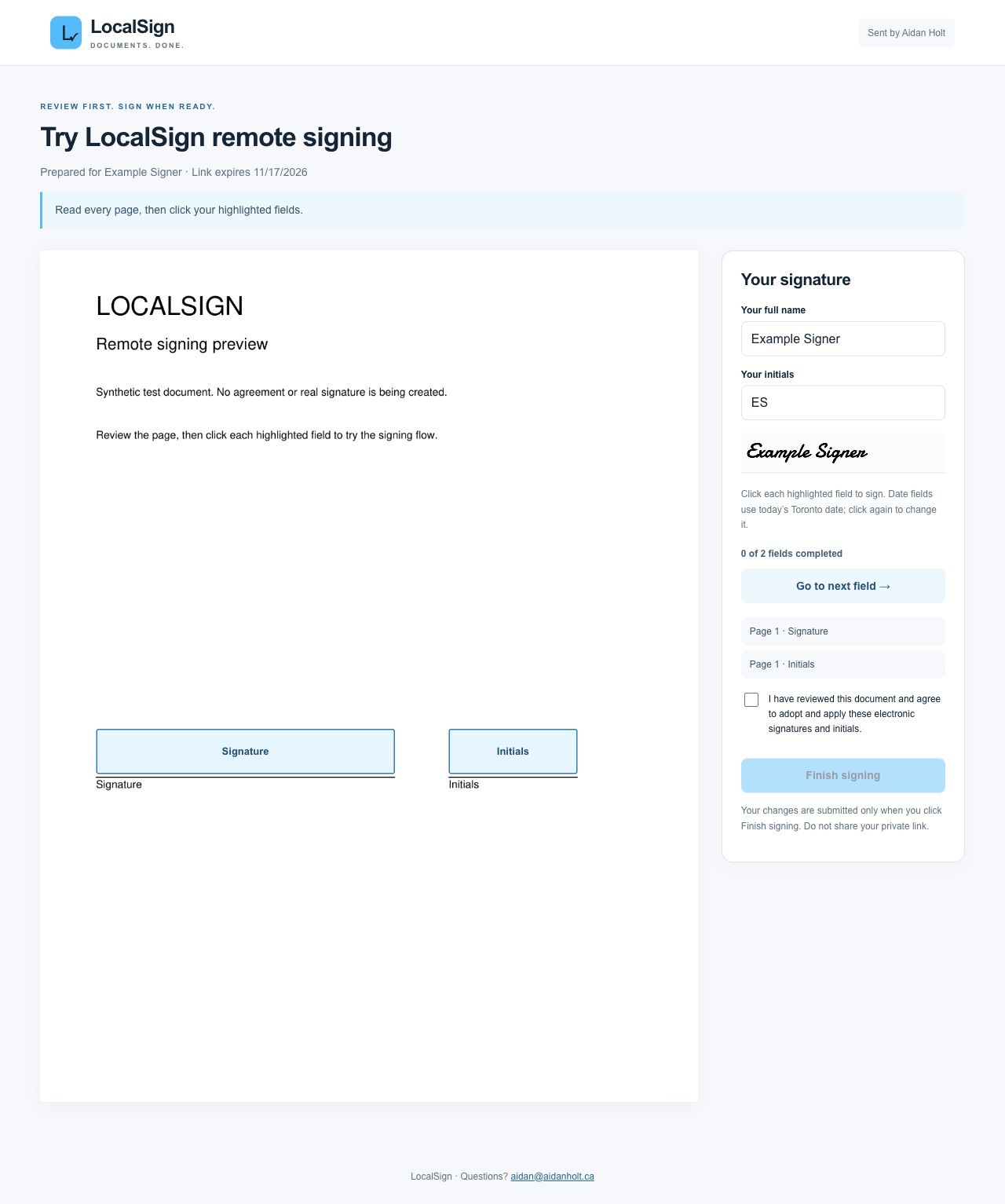
Review the document in your browser. Follow your highlighted fields, sign and finish. No new account or app to install.
Redline the original. Add the agreed wording. Put initials beside each change. Keep the document clear, even when the details evolve.
Movable marks, adjustable lines, font-aware text and editable drafts make room for careful preparation.
Commencement date
Open a category to explore what goes into your document.
Open PDFs and fill names, dates, terms and ordinary form fields using confirmed information.
Recognised OREA and RECO labels help suggest signing areas. I review roles and positions before use.
Save reviewed field layouts for matching forms and revisions, without saving someone’s handwriting.
Reuse verified client names and email addresses from the local contact book.
Prepare assigned fields, typed or drawn signatures, text, checkmarks and X marks.
Cross out wording visibly and place a separate initials field beside each change.
Cover wording and add a replacement, or revise supported printed text. A visual cover is not secure redaction.
Drag marks, adjust line length and thickness separately, nudge with the keyboard and use alignment guides.
Inspect source typography and match supported installed fonts when revising printed wording.
Review and take turns signing on the same computer, without Wi-Fi.
Each remote signer gets their own link and only their assigned signing fields.
Prepare up to 20 remote recipients, signing in parallel or in a chosen order.
Move automatically between required fields, adjust dates and explicitly finish when ready.
Send reminders to people still needed, set link expiry or cancel an outstanding request.
See when invitations were sent, signing pages opened and signatures submitted. Opens are not proof of reading.
Check pending fields, overlaps, potential clipping and leftover placeholder wording before sending.
Keep editable drafts, undo changes and reopen local recovery versions. Original files stay untouched.
Receive the final PDF and completion certificate once everyone has signed.
Export a flattened PDF with reviewed edits for preparation in another signing platform.
Connect document preparation to an AI assistant through LocalSign’s tools.
Stage supplied information for human review before applying it to the document.
AI can prepare fields and recipient details. People review the document and apply their own signatures.
LocalSign’s MCP and local API let an assistant help fill supplied details, place fields and prepare a signing request. I review the document and recipients before sending. Each person signs for themselves.
The Mac signing app works offline. Remote signing needs an internet connection; a connected cloud AI service has its own data handling.
No. If I send you an invitation, you sign in your browser. For in-person signing, we use the app on my Mac. The desktop app is currently private.
Yes. Each remote signer has their own invitation and assigned fields. We can let everyone sign independently or set a signing order.
Absolutely. Read the document before signing and contact me if a detail needs changing. I can prepare the correction and any required initials before we proceed.
The participants and I receive the completed PDF and completion certificate by email. The certificate records signing activity; it is not independent identity verification.
No. Smart suggestions help with recognised form labels and layouts. I review the details, signer roles and placements, and prepare unfamiliar or scanned forms manually.